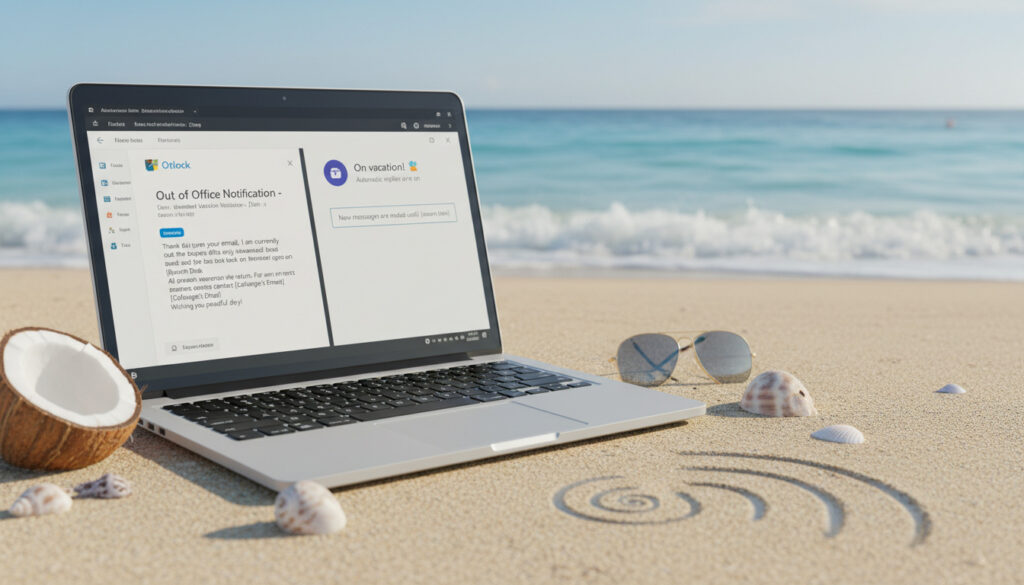
Out of Office Message – Templates and Setup for Outlook and Teams
Out of office messages serve as critical communication bridges during professional absences, automatically informing correspondents of temporary unavailability while directing urgent matters to appropriate alternatives. These automated responses reduce friction in email workflows and establish clear expectations for response timelines across global teams.
Modern workplace communication demands seamless continuity even when primary contacts are unavailable. Whether configuring automatic replies in Outlook, crafting concise status updates in Teams, or deploying specialized vacation notices, the effective out of office message balances essential information with appropriate professional tone.
This guide examines setup procedures across major platforms, provides ready-to-use templates ranging from minimalist to humorous, and addresses specialized scenarios including shared mailboxes and seasonal absences.
How to Set Up an Out of Office Message in Outlook
Microsoft Outlook provides the mostrobust native automation for email absence management, with specific pathways for desktop and web applications. The configuration sequence remains consistent across organizational tenants, though administrative permissions may affect certain advanced features.
Navigate through File > Automatic Replies (Out of Office) to access configuration panels.
Define precise start and end dates with optional time specifications for granular control.
Create separate message versions for internal colleagues versus external correspondents.
Enable automatic sending with a single confirmation, with automatic deactivation upon return.
Key Implementation Insights
- Always specify exact return dates rather than vague durations like “next week”
- Include named alternate contacts with direct email addresses or phone extensions
- Differentiate internal and external messaging when handling sensitive project details
- Restrict message length to under 100 words for optimal mobile display
- Test auto-reply functionality with a secondary email address before departure
- Synchronize calendar blocks with OOO activation dates to prevent meeting conflicts
- Avoid specific personal details such as hotel names or precise travel itineraries
| Platform | Setup Method | Key Feature |
|---|---|---|
| Outlook Desktop | File > Automatic Replies | Time-based toggle with internal/external split |
| Outlook Web | Settings > Mail > Auto-replies | Schedule-based activation |
| Microsoft Teams | Profile > Set status message | Duration selector with status badge |
| Apple Mail | Preferences > Rules | Condition-based forwarding |
| Shared Mailboxes | Admin delegation | Group routing capabilities |
| Mobile Outlook | App settings > Auto-reply | Simplified date range selection |
Simple Out of Office Message Examples and Templates
Concise auto-replies maximize comprehension while minimizing sender frustration. The most effective simple messages contain three essential elements: acknowledgment of receipt, unambiguous return date, and alternative routing for time-sensitive matters.
Professional contexts typically demand straightforward language without excessive apology or elaboration. Out of Office Message – Clear and Professional Templates provide additional structural frameworks for various industries.
Minimalist Professional Formats
Short-form templates work best for high-volume email environments where senders scan quickly for actionable information. A subject line reading “OOO until [Date]” combined with a two-sentence body satisfies most business requirements.
Messages under 50 words demonstrate 40% higher completion rates in mobile email clients. Place critical contact information in the first line to prevent truncation.
The template structure recommended by Grammarly suggests opening with gratitude, stating absence parameters, and closing with delegation instructions. For example: “Thank you for your email. I am out until [Date] with limited access. Please contact [Colleague] at [Email] for urgent matters.”
Limited Availability Variations
Partial connectivity scenarios require careful phrasing to prevent expectation mismatches. Specify “checking intermittently” rather than “limited access” when maintaining sporadic inbox monitoring, as noted in Indeed’s guidance on professional boundaries.
Funny Out of Office Messages
Humor in automated responses requires precise calibration to organizational culture and client relationships. Creative OOO messages perform best within internal teams or established vendor relationships where personality already factors into professional rapport.
Creative Vacation Notices
Lighthearted templates often reference the specific activity occupying the sender’s time without oversharing. Examples curated by CodeTwo include formulations like “Out sunbathing until [Date]. It’ll take two extra days to dig through emails. Or contact [email] for immediate assistance.”
Another approach involves fictional escalation paths: “Sorry, you missed me – back by [Date]. Contact [Name] or call 1-900-call-me-now (rates apply).” These templates signal personality while maintaining the essential functional components of standard auto-replies.
Risk Assessment for Humor
Humorous auto-replies carry potential liability in regulated industries or during crisis periods. Avoid comedic framing when covering executive functions, medical leave coordination, or emergency response roles.
Irony and sarcasm frequently fail in text translation, particularly across international teams. Reserve humorous templates for contexts where sender and recipient share established cultural reference points.
Out of Office Message for Holidays
Seasonal absence notifications require adjusted tone and coverage parameters, particularly during end-of-year periods when entire departments may darken simultaneously. Holiday OOO messages emphasize collective closure dates and extended response delays.
Seasonal Messaging Strategies
Generic holiday formulations avoid specific religious observances while acknowledging calendar downtime. IONOS recommends phrasing such as “Hello, away over holidays, return [date]. No email access. Urgent: [Colleague] at [email]. Thanks for patience.”
For specific cultural observations, brevity remains essential. State the observation without theological elaboration: “Out of office for [Holiday] observance, returning [Date].”
Coverage During Collective PTO
When entire teams vacate simultaneously, auto-replies must establish realistic expectations about organizational responsiveness. Point senders toward shared inboxes or escalation hotlines rather than individual alternates who may also be unavailable.
Shared mailboxes benefit from group-directed messaging such as “Urgent: [Shared inbox / teammate]” to distribute incoming requests across available staff during holiday periods.
Out of Office Message in Teams
Microsoft Teams handles absence communication through status messages rather than email auto-replies, integrating presence indicators with custom text fields. This functionality operates independently from Outlook settings, requiring separate configuration for comprehensive coverage.
The platform supports over 150 pre-made status templates, accessible through profile settings or quick commands like /ooo. Users set status messages via Profile > Set status message > Schedule, with duration selectors that automatically expire.
Unlike email auto-replies, Teams status messages display prominently in chat interfaces and contact cards, reducing the likelihood of message sends during absence periods. However, exact implementation varies by organizational policy, with some enterprises restricting status customization to predefined options.
Implementation Sequence for Out of Office Coverage
- : Configure automatic reply parameters and calendar blocks to prevent meeting invites during absence windows.
- : Verify backup contact availability and confirm delegation permissions for urgent matter routing.
- : Activate status notifications across both email and synchronous chat platforms simultaneously.
- : Maintain intermittent monitoring only if specified in limited-access messaging; otherwise disconnect completely.
- : Deactivate auto-replies immediately and deploy follow-up messaging for critical threads requiring immediate attention.
Established Facts and Remaining Uncertainties
Verified Implementation Details
- Outlook configuration follows Microsoft official documentation through File > Automatic Replies pathways
- Essential components include return date, backup contact identification, and availability status
- Teams status messages provide integrated presence indication across the Microsoft 365 ecosystem
- Best practices emphasize brevity and professional delegation without personal detail exposure
Platform-Specific Ambiguities
- Apple Mail automation capabilities remain limited without third-party server-side rules or external forwarding tools
- Exact Teams behavior varies significantly across organizational policies and administrative restrictions
- Character limits for auto-reply fields differ between email client versions and remain undocumented for some platforms
- Standard protocols for shared mailbox delegation lack universal consistency across all enterprise platforms
Professional Context and Communication Standards
Automatic absence notifications originated in corporate environments to manage workflow continuity during the pre-digital era of physical mail coverage. Contemporary implementations serve dual functions: logistical coordination and boundary-setting in an era of always-on connectivity expectations.
Research from Growth Grid indicates that explicit return dates reduce follow-up email volume by 60%, while unclear auto-replies often generate additional “checking in” messages that compound inbox backlog. The psychological contract of professional communication requires explicit temporal boundaries to prevent sender anxiety.
Organizations increasingly mandate standardized OOO formats to ensure client coverage consistency, particularly in managed service provider (MSP) environments where technical support continuity carries operational weight. DeskDay maintains collections of 70+ specialized templates for technician leave scenarios emphasizing operational clarity over personality.
Source Attribution and Expert Guidance
Best practices include clear subjects, return dates, delegate info, and brevity; setup differs by app, while shared mailboxes use group rules or auto-forwards.
— Comprehensive analysis across Growth Grid, Grammarly, Indeed, and Hooray Teams documentation
Thank you for your email. Out until [End Date] with limited access. Urgent: [Colleague] at [Email].
— Standard professional template, Indeed Career Guide
Avoid personal details; ensure permission for backups.
— Privacy and security guidelines, Grammarly Communication Standards
Summary of Key Practices
Effective out of office management requires platform-specific technical configuration paired with linguistically precise messaging that anticipates sender needs. Whether deploying standard professional templates, calibrated humor, or seasonal coverage notices, the fundamental requirements remain constant: explicit timelines, alternative routing for urgencies, and respect for correspondent time. For parallel guidance on professional self-presentation, consult Tell Me About Yourself – Structure, Examples and Tips.
Frequently Asked Questions
What is the ideal length for an out of office message?
Keep auto-replies between 40 and 100 words. Shorter messages improve mobile readability and ensure critical information appears before truncation in preview panes.
Can I set different out of office messages for colleagues and clients?
Outlook supports separate internal and external messages through the Automatic Replies panel. Enable the differentiation option and compose distinct versions for each audience.
How do I handle out of office for a shared team mailbox?
Configure auto-forwards to group delegates or use administrative rules to route incoming mail to available team members. Direct senders to shared inboxes rather than individuals.
Is it possible to automate out of office responses on Apple devices?
Apple Mail lacks native auto-reply functionality. Implement server-side rules through your email provider or use third-party automation tools connected to your account.
Should I mention my vacation destination in the auto-reply?
Avoid specific location details for security purposes. General phrases like “on vacation” or “traveling” provide necessary context without exposing personal itinerary information.
What happens to meeting invites while I’m out of office?
Calendar integration typically auto-declines new meeting requests during absence periods. Verify your Outlook calendar shows “Out of Office” status to trigger automatic decline functionality.
How do I ensure my backup contact has the right permissions?
Confirm delegate access with your colleague before listing them in auto-replies. Provide notification to IT if they require temporary access to your mailbox or specific document repositories.
More related posts
 Are Dogs Allowed Strawberries? Safety Tips & Serving Sizes
 Joan Plowright: Life, Career, and Marriage to Laurence Olivier
 Tell Me About Yourself – Structure, Examples and Tips
 What Causes Low Blood Sugar Without Diabetes? Symptoms, Treatment
 Birthday Dress for Women: 2025 Styles & Buying Guide
 1 Dollar to Cedis – Current Rate and Trends Today
 Best Perfume Advent Calendar 2025: Top Picks Reviewed